


GetYourGuide Integration Guide
Learn how to integrate GetYourGuide with TourTask to enable instant bookings and live availability updates.
Sell on more channels
Learn how to integrate GetYourGuide with TourTask to enable instant bookings and live availability updates.
Sell on more channels
GetYourGuide was founded in 2009 in Berlin, Germany, and has since grown into one of the world's premier platforms for booking tours, activities, and attractions. It connects travelers with unforgettable experiences, offering a vast selection curated by local experts. With a particularly strong presence in Germany, the rest of Europe, and North America, GetYourGuide caters to a global audience of travelers seeking high-quality, reliable experiences.
The platform stands out for its user-friendly interface, instant booking confirmations, mobile tickets, and flexible cancellation options, making it easy for travelers to discover, book, and manage their activities. By partnering directly with tour operators and activity providers, GetYourGuide ensures access to unique and exclusive experiences that enhance any travel adventure. Integrating GetYourGuide with TourTask allows you to seamlessly manage bookings and reach a global audience, boosting your visibility and reliability in the competitive tours and activities market.
Follow the steps below to start receiving instant bookings from GetYourGuide.
Go to this link to sign up as an activity supplier at GetYourGuide:
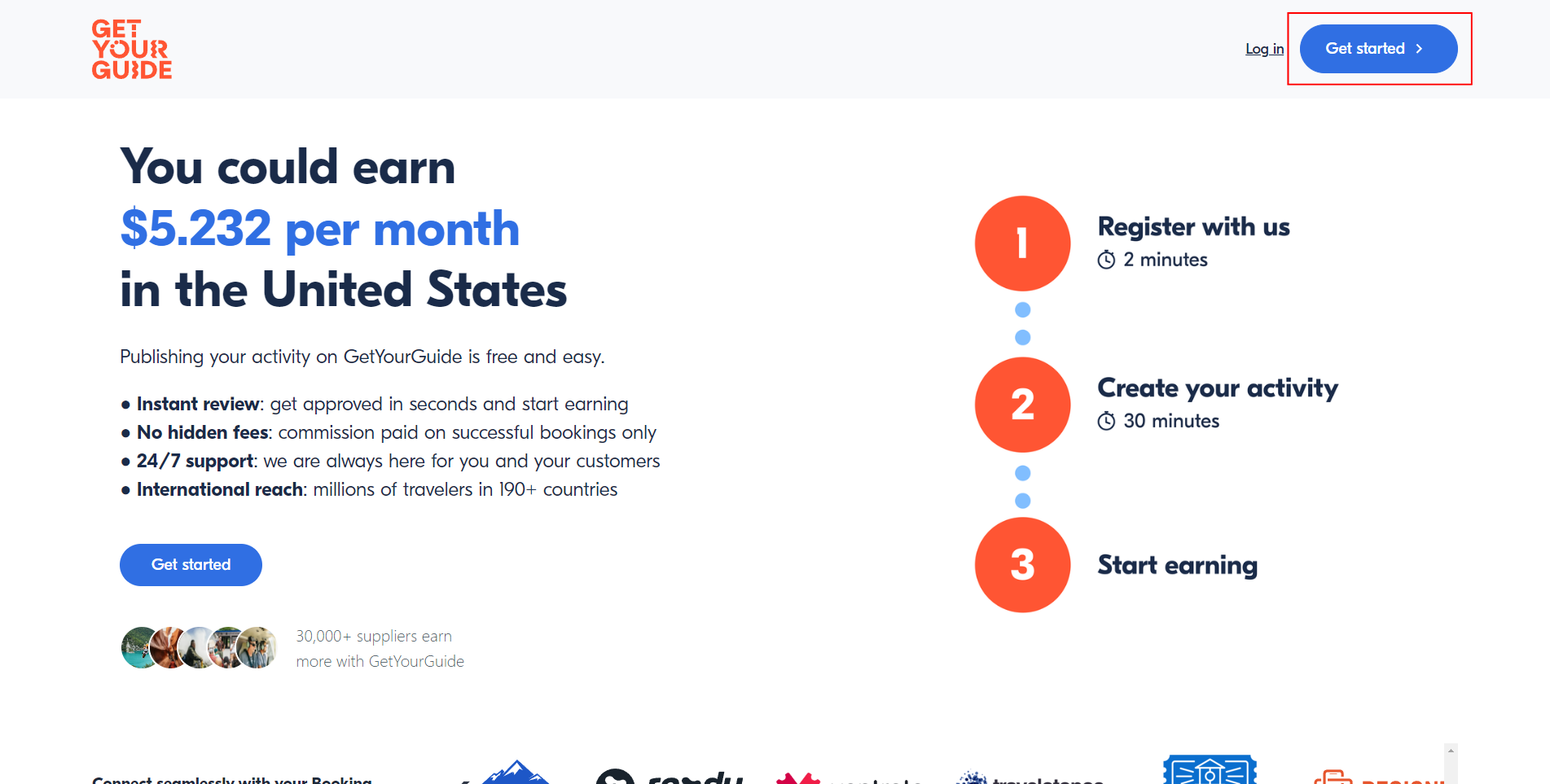
Click the blue button in the top right corner to start the registration process.
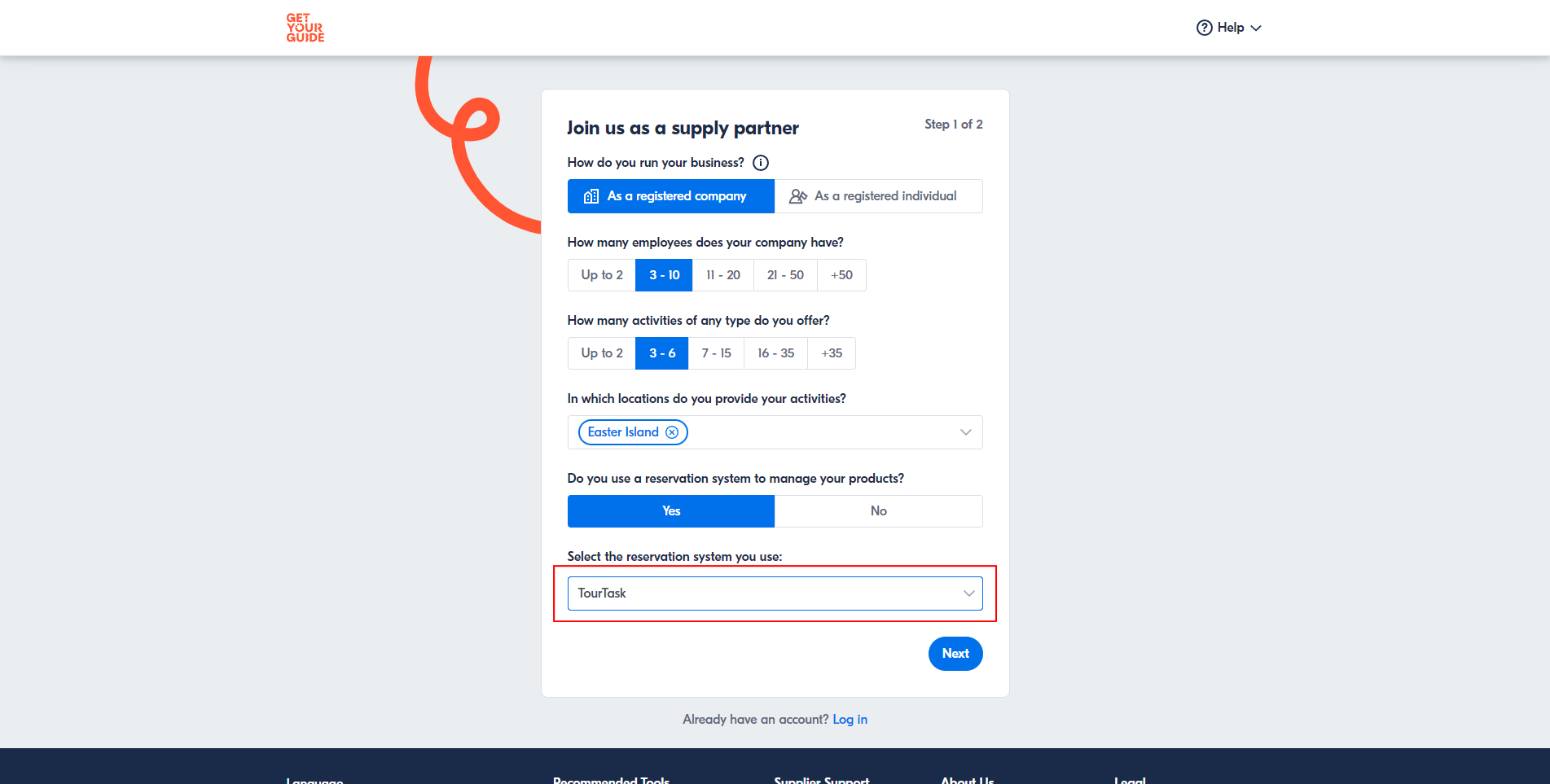
Fill out the form with your business information and select TourTask as your reservation system.
Finish the registration process and log in to your new GetYourGuide supplier account.
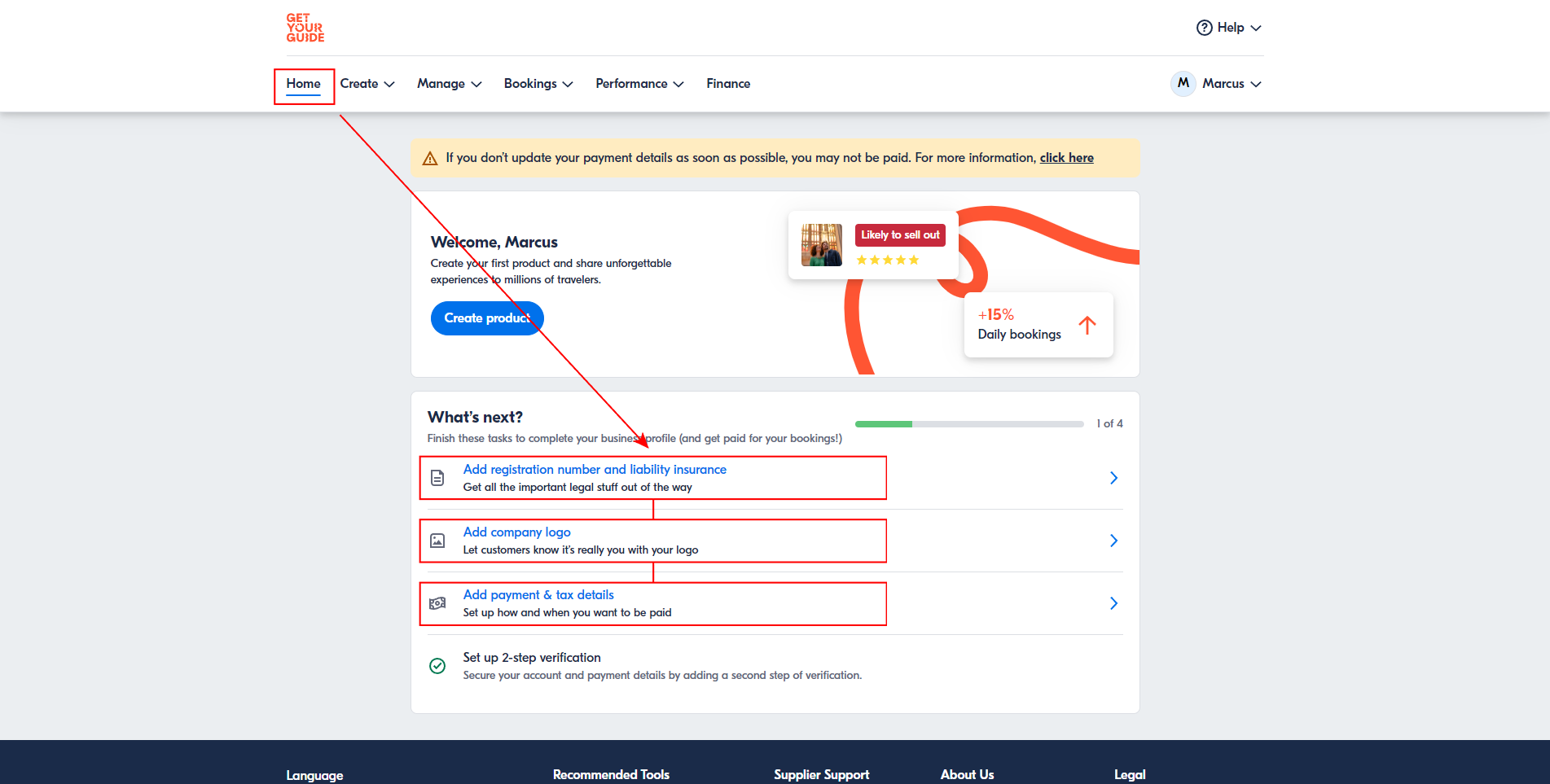
Once logged in, fill out all of the necessary business and financial information and upload a logo to complete the business registration.
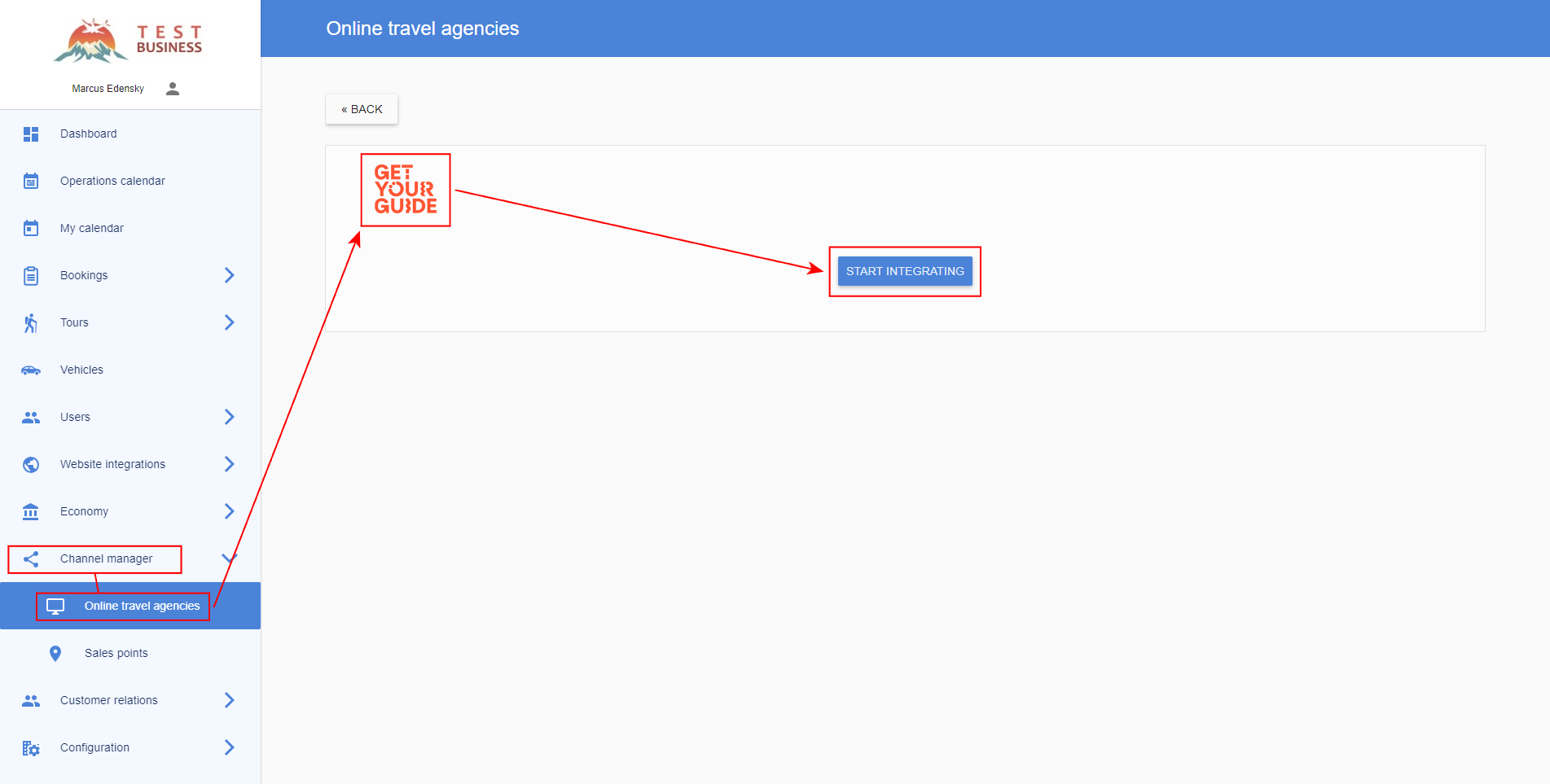
If you haven't activated GetYourGuide in your TourTask panel yet, then you can do this by going to Channel Manager > Online travel agencies > GetYourGuide and clicking Start integrating.
In the GetYourGuide purchase flow, space will be reserved in your system in the form of a temporary unconfirmed booking before the customer pays and the booking is confirmed. Since the customer details are unknown at this point, these unconfirmed bookings will be created under a specific user in your system. Please specify this user under Channel Manager > Online travel agencies > GetYourGuide > User. Notifications of when these unconfirmed bookings are created and expire will be sent to this user. If you wish, you may create a new user for this, to not receive these notifications in your main user account.
All your tours and packages are available in the shared product catalog under Channel manager > Online travel agencies, grouped as tours (by category) and packages — ready to connect to GetYourGuide.
Each product already comes with a default option. You only add extra options when you want to sell a variation that differs from the default — for example a different tour variant (such as another language or pick-up point), or a version that includes optional add-ons. To add one, click the pen icon on the product in the catalog and add your options. If a tour has just one variant and no add-ons, there is nothing extra to set up.
A package is sent to GetYourGuide as a single product. So on GetYourGuide, set it up as one product (not as separate tours) and connect it to the matching package from your catalog.
In the catalog you'll find a product code for each product and an option code for each option — click a code to copy it. You'll need these when you connect your products on GetYourGuide below.
Make sure you're logged in at supplier.getyourguide.com and then go to Create > New Product. Select your title and description language, and then select your product category. Since you're using TourTask, most probably your product category will be Tour, or possibly also Transfer.
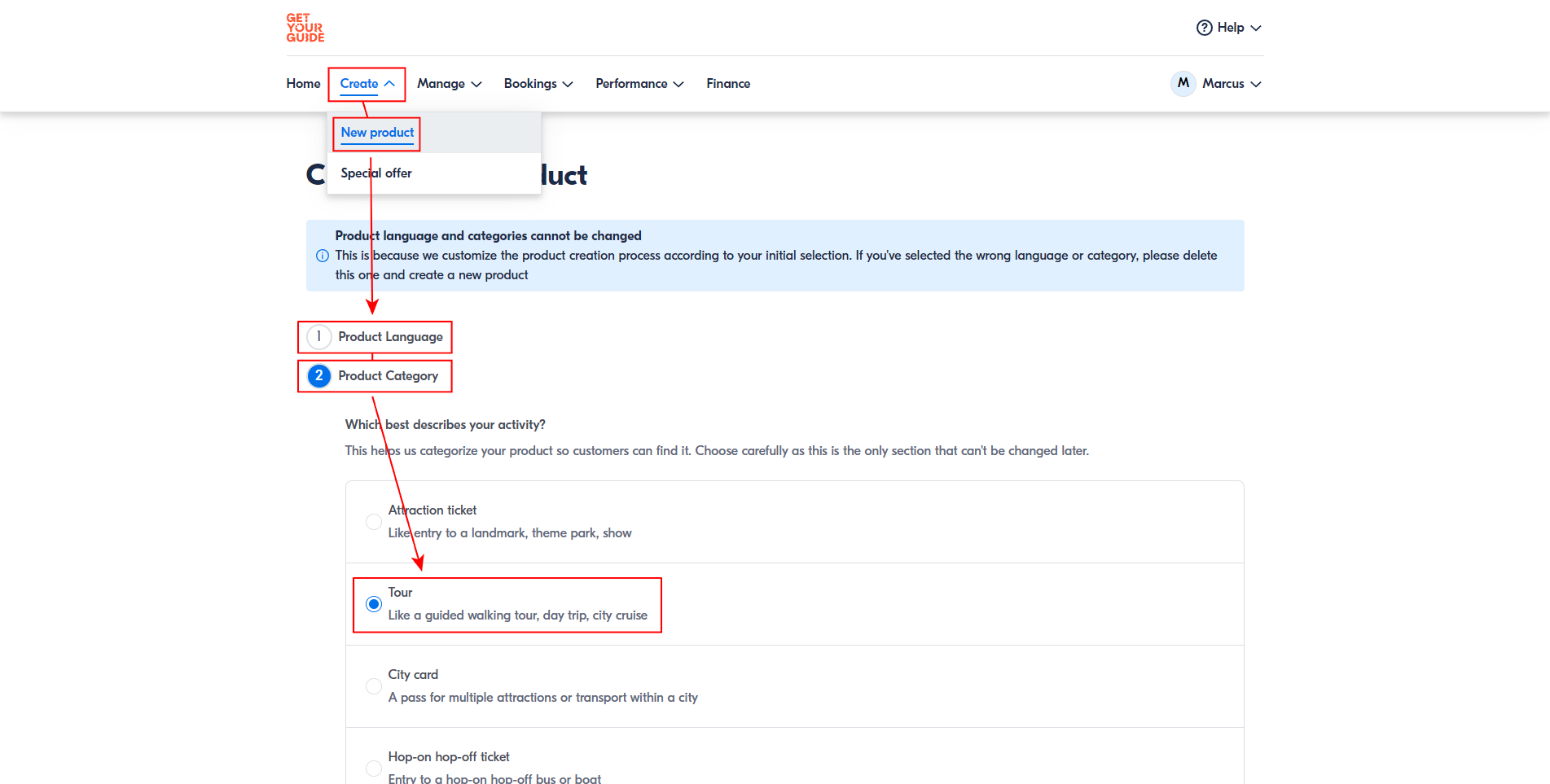
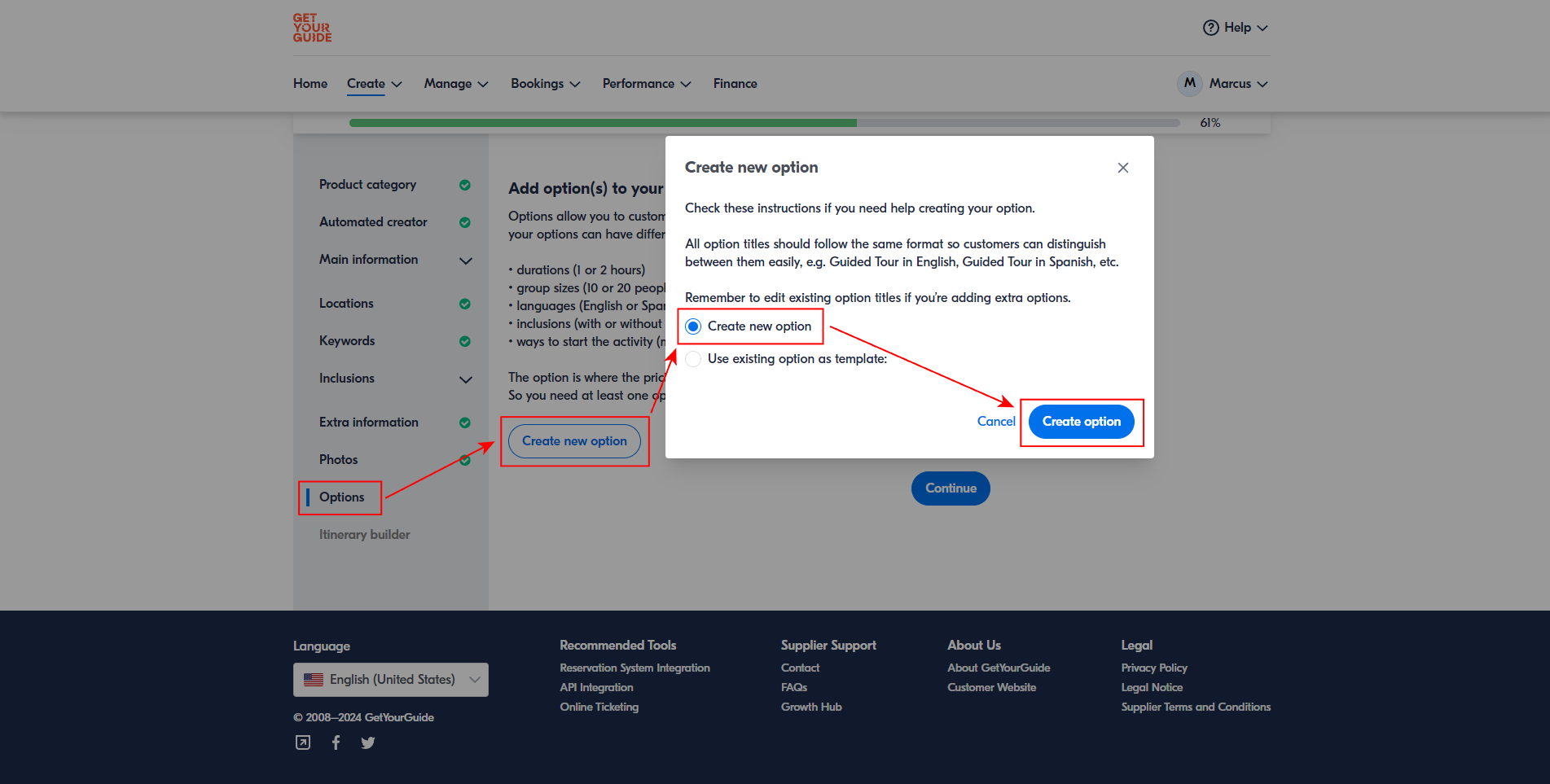
Fill out your product information on the next page. Once you reach the "Options" section, create a new option. GetYourGuide requires at least one option for each product. Start with creating the default option. If your activity has optional add-ons in TourTask that you want to offer on GetYourGuide, you can create these activity variations as additional options.
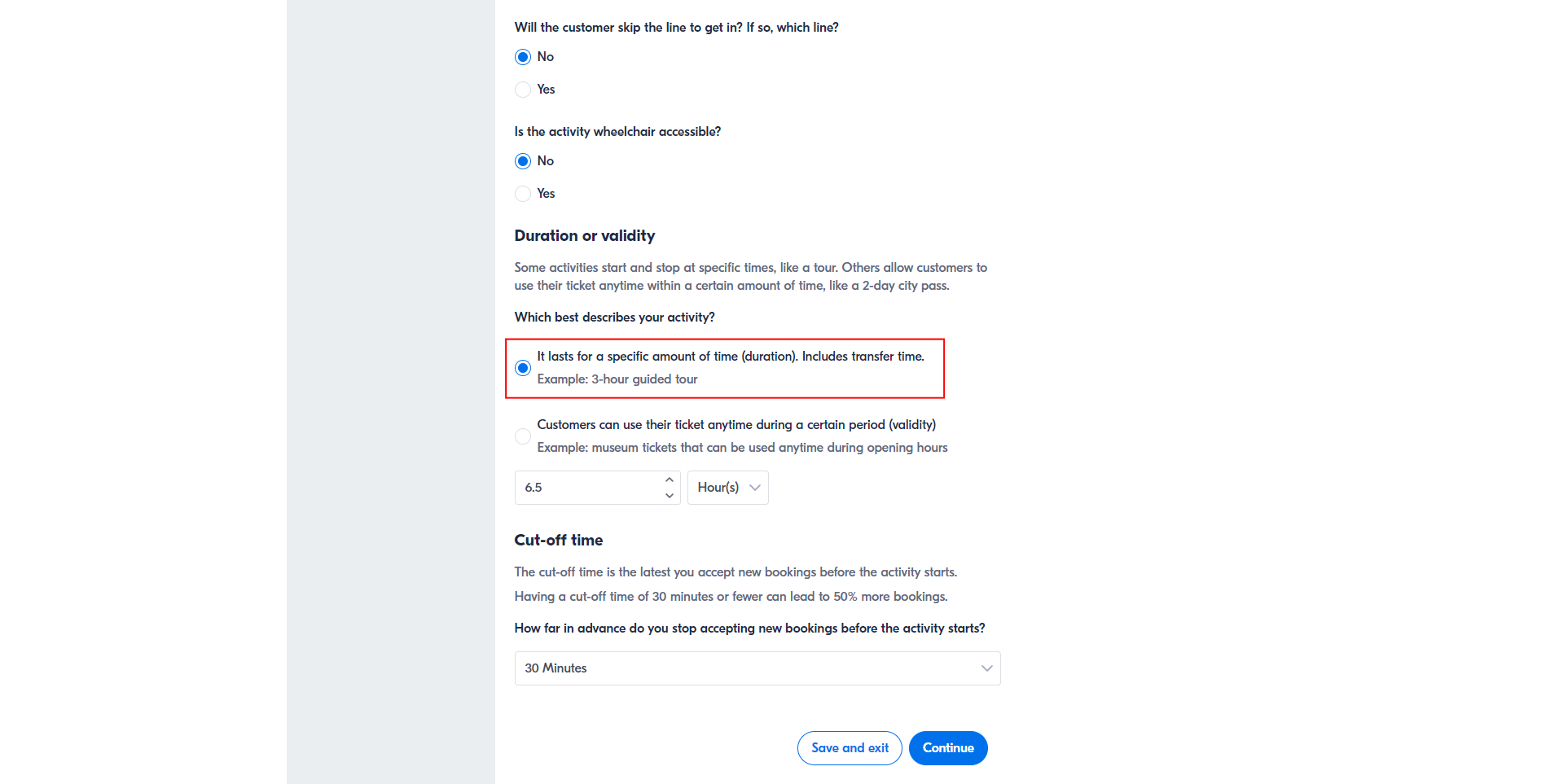
Under Option Setup > Duration or validity, make sure you select the first option, "It lasts for a specific amount of time (duration)".
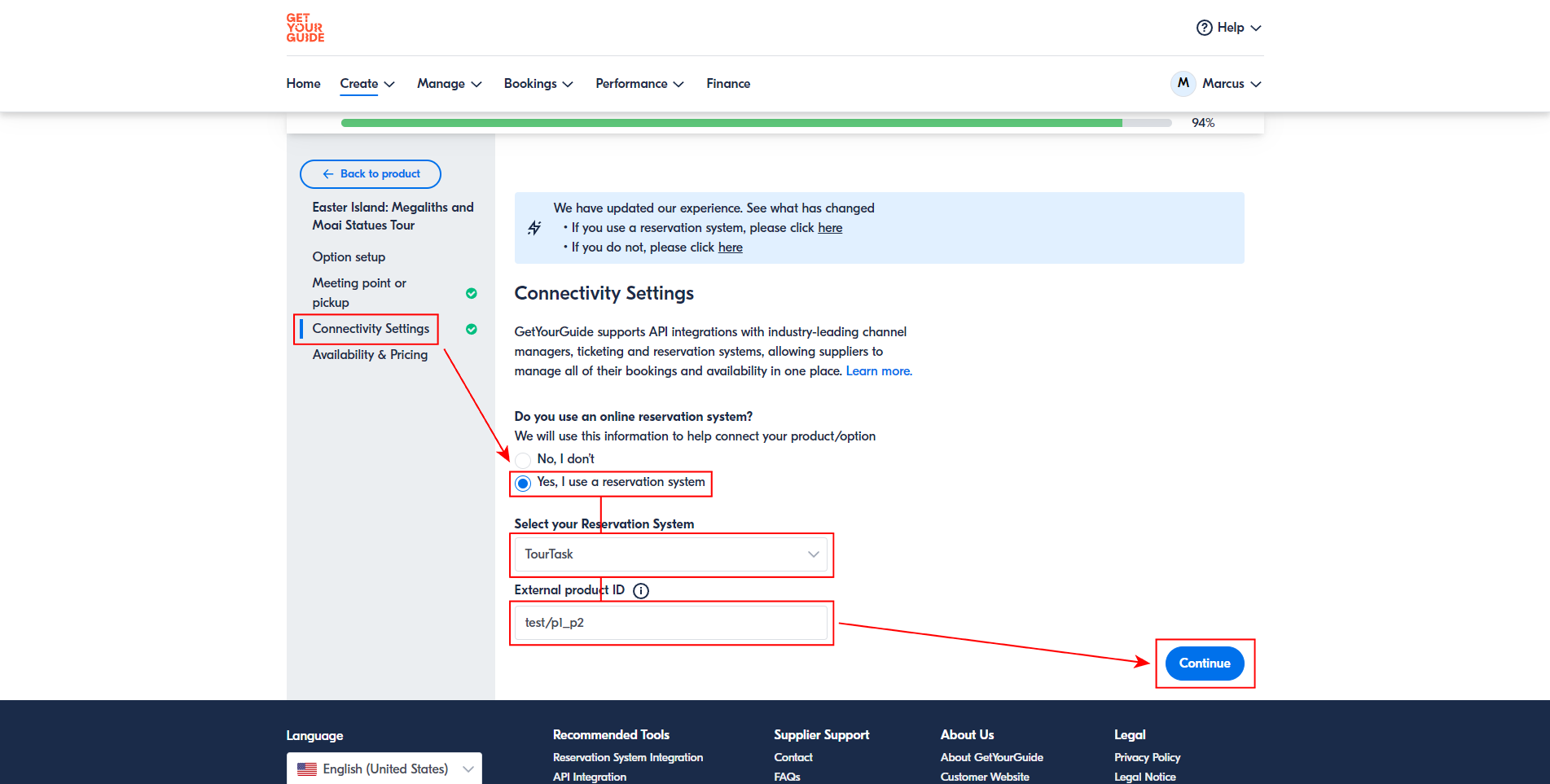
Under Connectivity Settings > Do you use an online reservation system? select Yes, I use a reservation system, search for and select TourTask and paste the TourTask option code into the External product ID field. Always connect each GetYourGuide option to its matching TourTask option code — never the product code.
Under Availability & Pricing select Price per person and click Add new pricing. Please note that if you want to charge all customers the same, simply don't activate any other price groups than .
Log into your GetYourGuide supplier account at supplier.getyourguide.com.
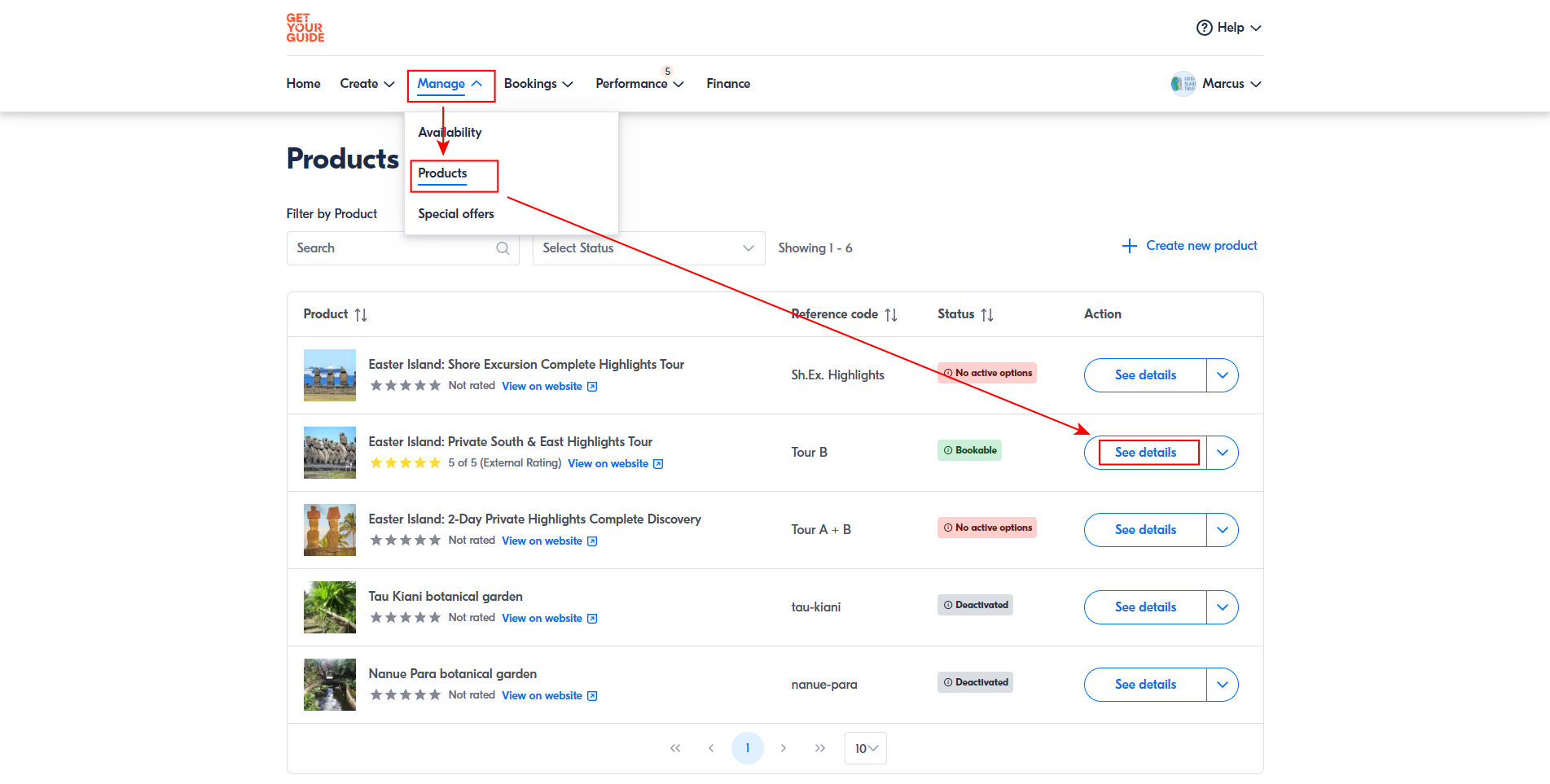
Go to Manage > Products and click See details on the activity you want to connect to TourTask.
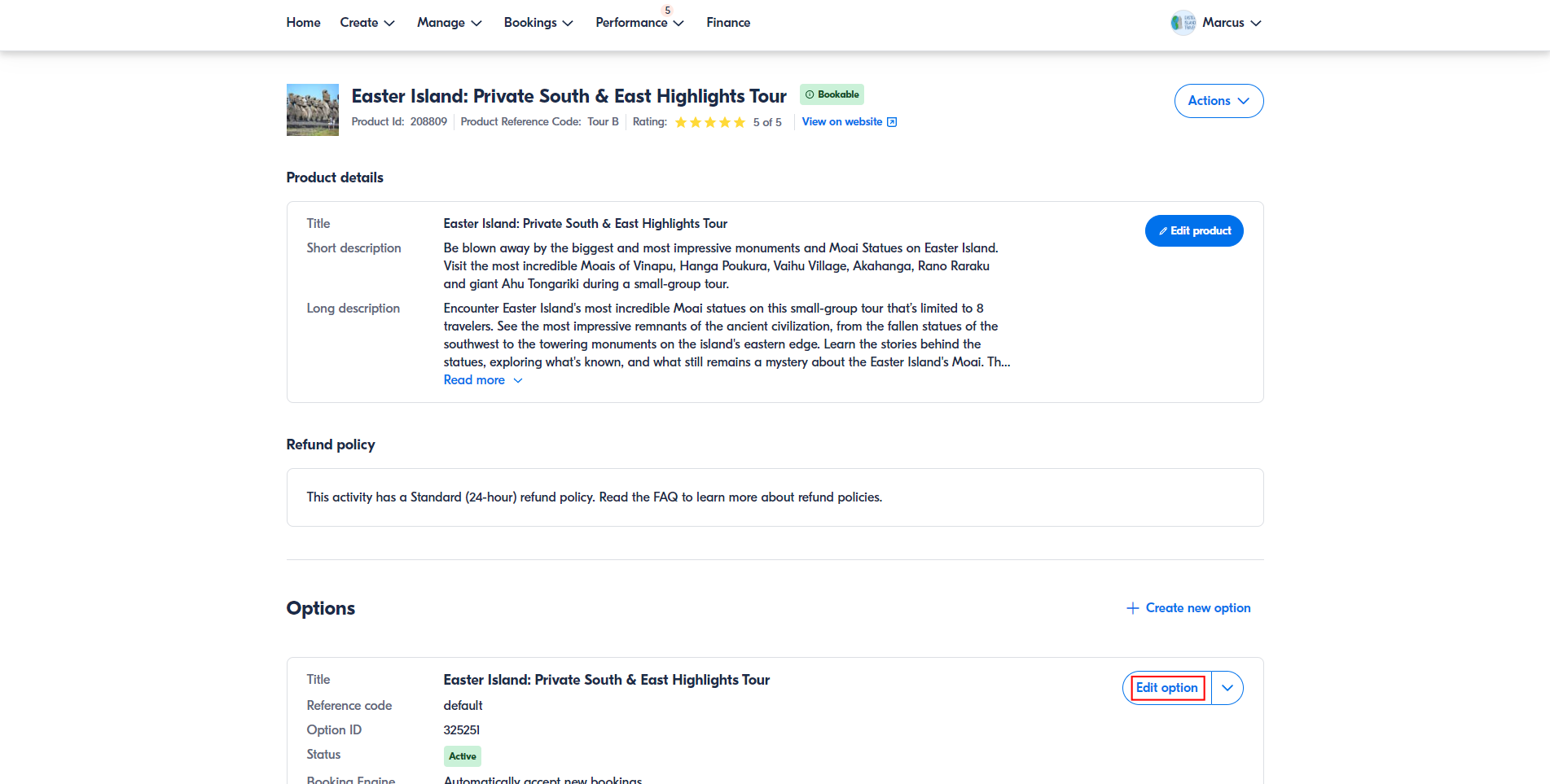
Click Edit option for the option you want to connect. Please note that if you have multiple options for the same activity, you will have to connect each option separately.
Under Option Setup > Duration or validity, make sure you select the first option, "It lasts for a specific amount of time (duration)".
Under Connectivity Settings > Do you use an online reservation system? select Yes, I use a reservation system, search for and select TourTask and paste the TourTask option code into the External product ID field. Always connect each GetYourGuide option to its matching TourTask option code — never the product code.
Under Availability & Pricing select Price per person and click Add new pricing. Please note that if you want to charge all customers the same, simply don't activate any other price groups than adult.

Even if you're charging everyone the same, make sure you select the second option Price depends on age, eg: adults, child, senior, etc. Add any age groups that you would like to use. If you're not charging differently depending on age, just stay with the Adult age group. Make sure you have the same age groups activated in your TourTask panel.

Under Availability & Pricing > Price > Do you want to apply the prices that you have specified in your reservation system? select Yes. This lets GetYourGuide use the prices TourTask sends, so you never have to keep prices in sync by hand. You still need to set up the pricing structure so it matches what TourTask sends:
For a product that contains a private tour: click Tier price and add one tier for each party size — 1 person, 2 people, 3 people, and so on, up to your tour's maximum. TourTask sends a separate per-person price for every party size up to 20 people (if your tour holds more, the last tier covers the rest), so create your tiers to match. TourTask fills in the actual amounts.
For a group tour: add a single flat price per person — a group tour is charged per person, so one price covers any party size. Then click Save and continue. TourTask fills in the actual amounts.
The next step, Itinerary builder, is optional, but recommended to increase sales. Afterwards, in the last step send the product for review, and you're done!
Even if you're charging everyone the same, make sure you select the second option Price depends on age, eg: adults, child, senior, etc. Add any age groups that you would like to use. If you're not charging differently depending on age, just stay with the Adult age group. Make sure you have the same age groups activated in your TourTask panel.
Under Availability & Pricing > Price > Do you want to apply the prices that you have specified in your reservation system? select Yes. This lets GetYourGuide use the prices TourTask sends, so you never have to keep prices in sync by hand. You still need to set up the pricing structure so it matches what TourTask sends:
For a product that contains a private tour: click Tier price and add one tier for each party size — 1 person, 2 people, 3 people, and so on, up to your tour's maximum. TourTask sends a separate per-person price for every party size up to 20 people (if your tour holds more, the last tier covers the rest), so create your tiers to match. TourTask fills in the actual amounts.
For a group tour: add a single flat price per person — a group tour is charged per person, so one price covers any party size. Then click Save and continue. TourTask fills in the actual amounts.
Your GetYourGuide product option is now connected to TourTask! You must now repeat this process with all options for all of your GetYourGuide products.
TourTask sends your prices to GetYourGuide automatically, so you never type prices into the GetYourGuide portal by hand and they always stay in sync. You decide what GetYourGuide charges from Channel manager > Online travel agencies > GetYourGuide, using three settings: