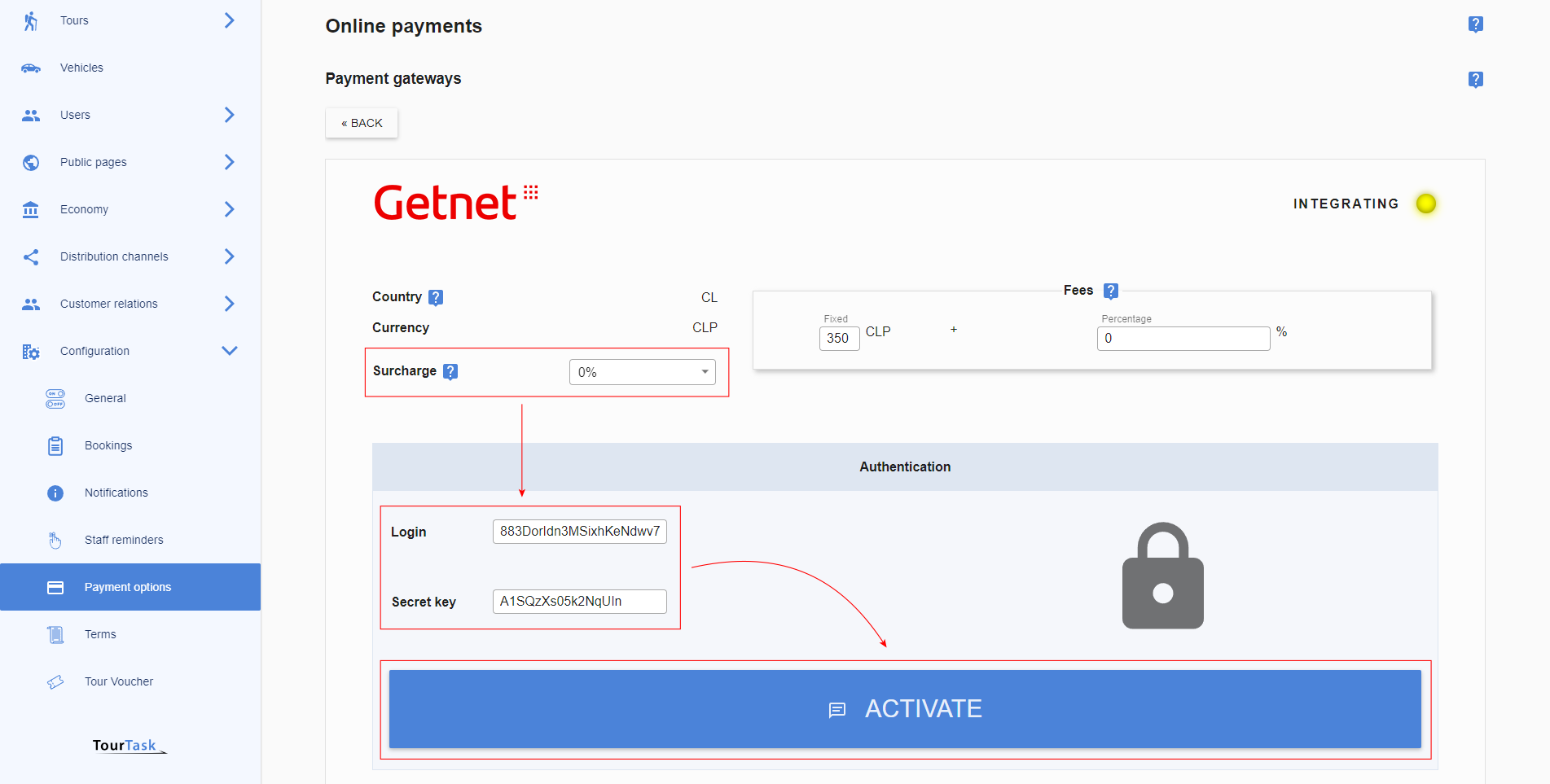

Google Pay fees
| {{ feeType.typeTitle }} | ≤{{ feeType.percent }}% + {{ feeType.fixed }} {{ feeType.currencyCode }} + {{ feeType.taxTitle }} |
Countries
This payment gateway is available worldwideCurrencies
Your clients will be charged in one of the following currencies:
Please search online for information on how to obtain the necessary API credentials to complete your integration
How to setup Google Pay in TourTask
For Google Pay, the following credentials are required:
- API key
- Publishable key
- Webhook secret
These credentials must be entered in TourTask to activate this payment gateway. To achieve this, follow these steps:
- Log into your business panel in TourTask at [business shortcode].tourtask.com. Your business shortcode will often consist of the initials of your business name, so for a business called My Tour Business, the URL of your business panel would be mtb.tourtask.com.
-
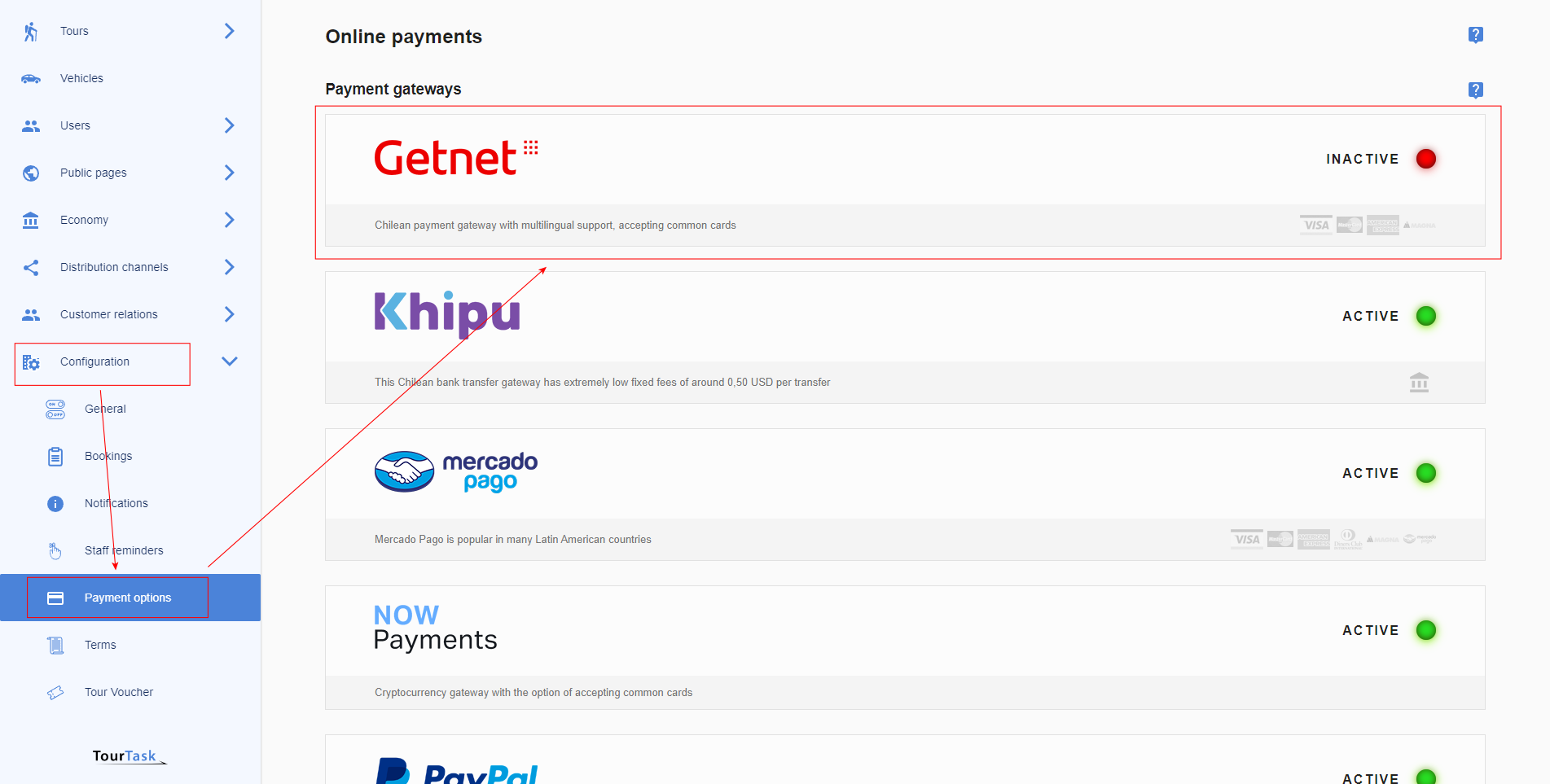
Go to Configuration > Payment Options and select the Google Pay payment gateway.
-
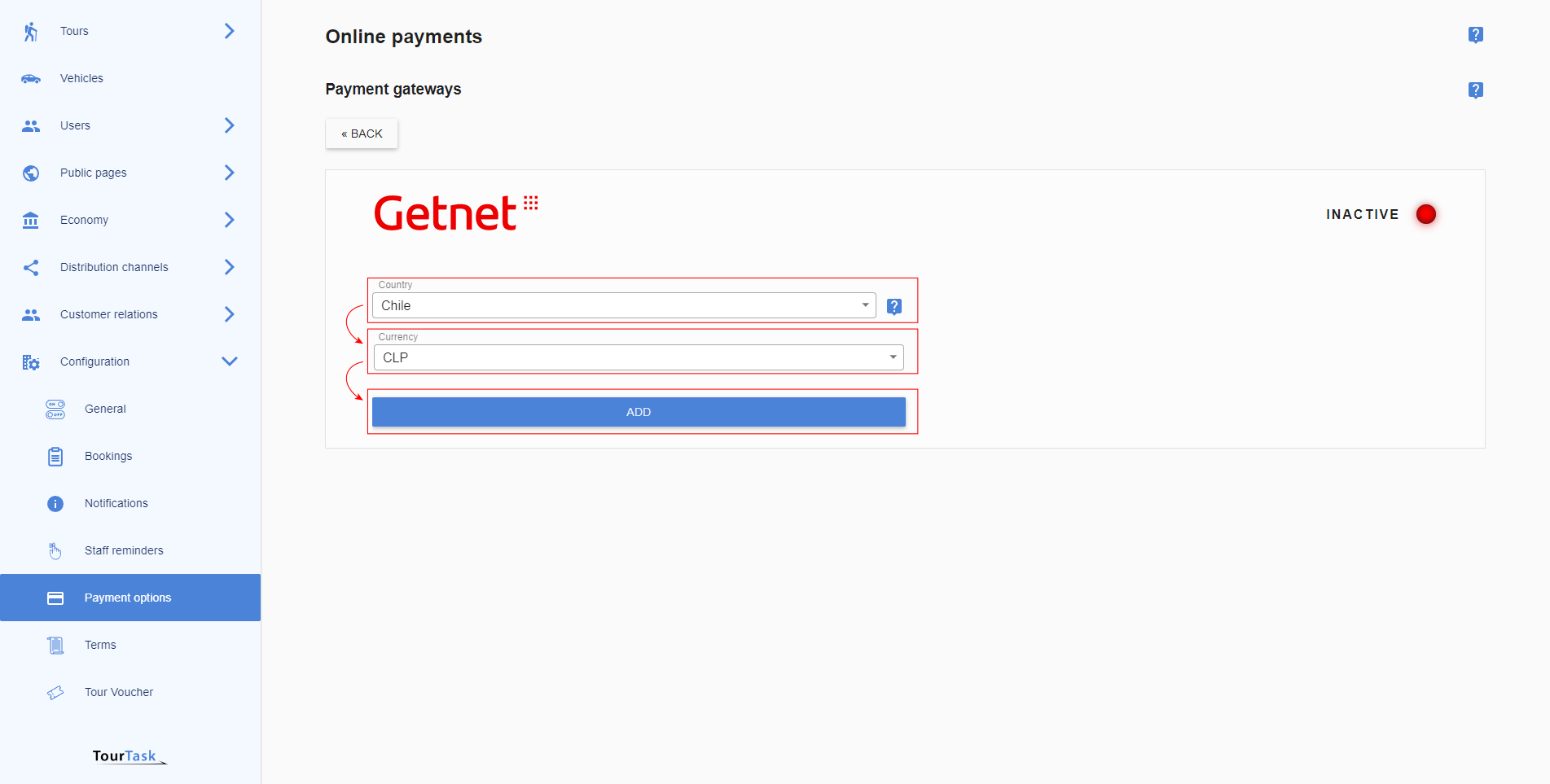
Select currency and add the gateway. Selecting country for Google Pay is not necessary.
-
Optionally add a surcharge to cover transaction costs on your side when clients pay using Google Pay. Fill out the required credentials and activate the gateway.